
ePRINTit Wireless Printing Instructions
ePRINTit is a wireless printing service that allows you to print material from your phone, laptop, or computer.
- Print jobs can be sent from your home or in the library.
- Prints must be picked up and paid for at the library within 48 hours.
- Cost:
- Black and white: 10 cents per page
- Color: 25 cents per page
Print documents from your email
-
- Find the email that you would like to print.
- Select the forward option.
- Forward the email with the document/attachment that you want to print to one of the following email addresses
Main Library
-
-
- Black and White copies forward email to bw@itpld.org
- Color copies forward email to color@itpld.org
-
Branch
-
-
- Black and White copies forward email to branchbw@itpld.org
- Color copies forward email to branchcolor@itpld.org
-
Your username will be a unique set of numbers. You need this release code to retrieve your print job. You will find this in an email from “noreply” in your email inbox.

Print from the website on a laptop or smart device
Supported File Types: .pdf .jpg .jpeg .png .gif .bmp .tif .tiff .doc .docx .ppt .pptx .xls .xlsx .html .htm .txt .rtf .pub .odt .odp .ods
Will not print password protected documents.
Step 1
- Picking up print requests: select remote printing button on the top right corner of this website.
- Mobile device: select the three horizontal lines on this website and then select remote printing.
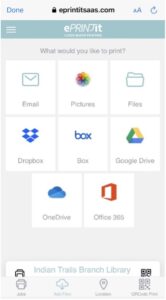
![You can print emails, pictures, and files from dropbox, box, onedrive and office365.]() Step 2
Step 2
Select how you would like to retrieve your file – it is best if it is saved as a file. Google Drive option is not available.
Step 3
Select whether what you want to print is a photo or file. You can select multiple files.
Step 4
Once your file has been chosen, select Open at the top right of your screen.
Step 5
Select the location of where you would like to pick up your print. You can search Indian Trails and select either the Main Library or the Branch Library.
Step 6
Select print options by selecting the downwards arrow.
- Number of copies
- Page range
- Black and White or Color
- Layout: As Saved, Portrait or Landscape
- One-sided or double-sided
- Paper size: Letter & Legal
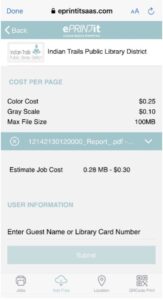
![A screen example of priting black and white or color.]() Step 7
Step 7
Enter your library card number or your name.
- NOTE: What you enter is what you will need to pick up your printed document.
-
-
-
- We suggest using your Library Card number or your name/initials.
-
-
-
- Optional: Enter your email to receive a receipt of your print job
Step 8
Select Submit.
- A pop-up will appear saying your print job submission was successful or unsuccessful.
Step 9
Pick up your print job.
- At any printer in the main library or Branch, enter the username you entered in Step 7.
Print from the ITPLD App – Documents saved to your device
Step 1
Go to the ITPLD App.
Step 2
Select Visit Us.
Step 3
Select Wireless Printing.
Step 4
Select Print Now.
![You can print emails, pictures, and files from dropbox, box, onedrive and office365.]() Step 5
Step 5
Select how you would like to retrieve your file – it is best if it is saved as a file. Google Drive option is not available.
Step 6
Select whether what you want to print is a photo or file. You can select multiple files.
Step 7
Once your file has been chosen, select Open.
Step 8
Select the location of where you would like to pick up your print, you can search Indian Trails and select either the Main Library or the Branch Library.
Step 9
Select print options.
- Number of copies
- Black and white or Color
- One-sided or double-sided
- Paper size: Letter & Legal
- Layout: As Saved, Portrait or Landscape
- Page Range
![A screen example of priting black and white or color.]() Step 10
Step 10
Enter your library card number or your name.
- NOTE: What you enter is what you will need to pick up your printed document.
-
-
-
- We suggest using your Library Card number or your initials/name.
-
-
-
- Optional: Enter your email to receive a receipt of your print job.
Step 11
Select Submit.
- A pop-up will appear saying your print job submission was successful or unsuccessful.
Step 12
Pick up your print job.
- At any printer in the main library or Branch, enter the username you entered in Step 10.
For MORE assistance
- Call 847.459.4100, extension 3 or set up a free one-on-one session.
- Email adult@itpld.org or branch@itpld.org
- Stop by the Adult Services Desk or at the Branch for a quick in-person tutorial.
Last updated: March 2026